Manage Display Languages
Goal
Provide a clear language experience based on supported content.
Before You Start
- Confirm you are on the correct website context.
- Use an account with permission for this section.
- Save changes before leaving the page.
Steps
- Open Website then Display Languages.
- Add supported languages or disable unused ones.
- Set the default primary language.
- Order languages by audience priority.
- Save and test language switch on public site.
UI Snapshots (Real Interaction)
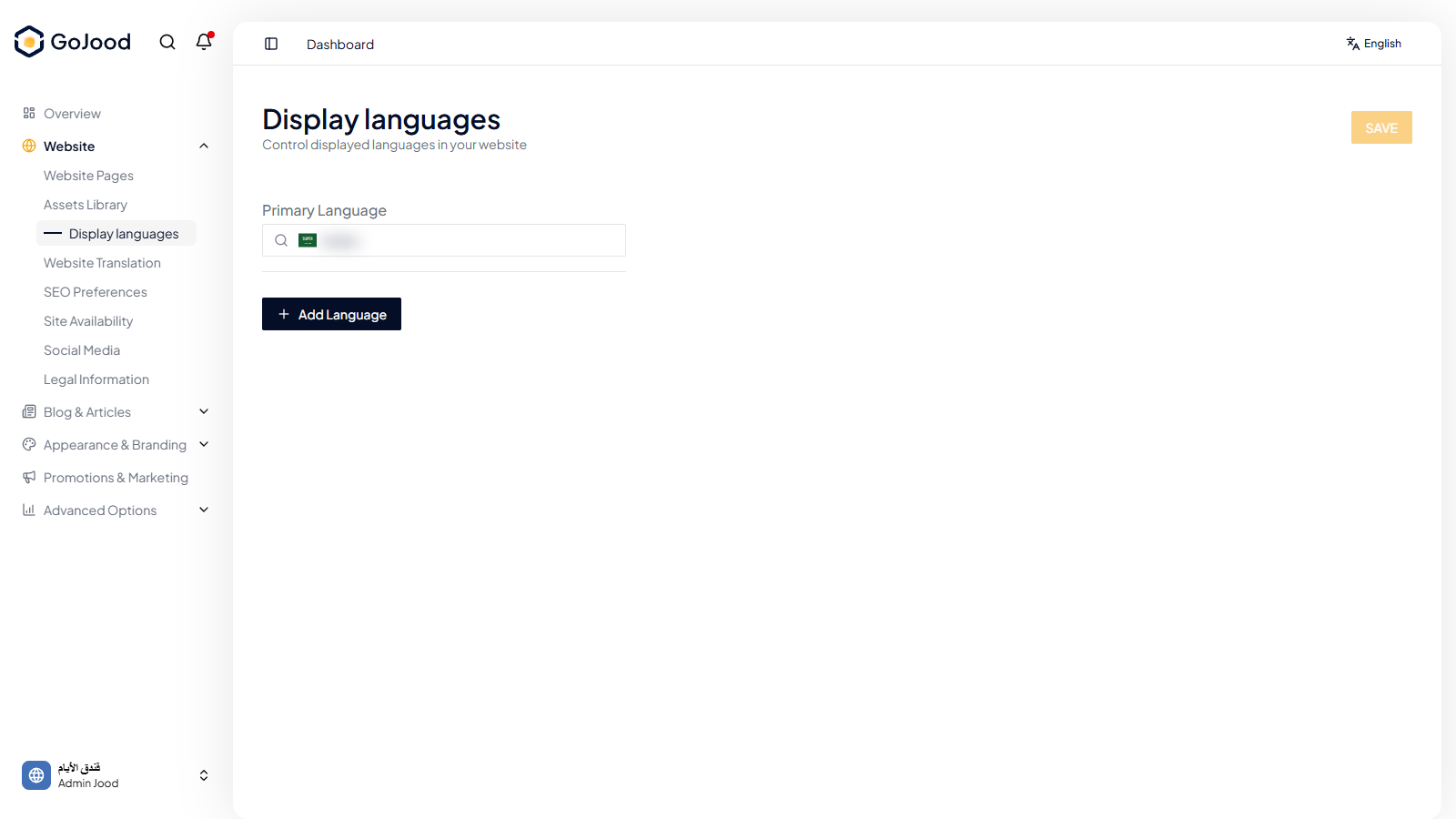
Caption: Language settings screen for enabling and ordering locales.
Verify After Completion
- Default language applies correctly.
- Visitor language options match configuration.
- Incomplete language is not exposed as active.
Troubleshooting
- If update is not visible, run a full page refresh.
- If save fails, review required fields and validation.
- If issue persists, share screenshot and exact steps with support.